
One HDR Shot, Two Different Previews
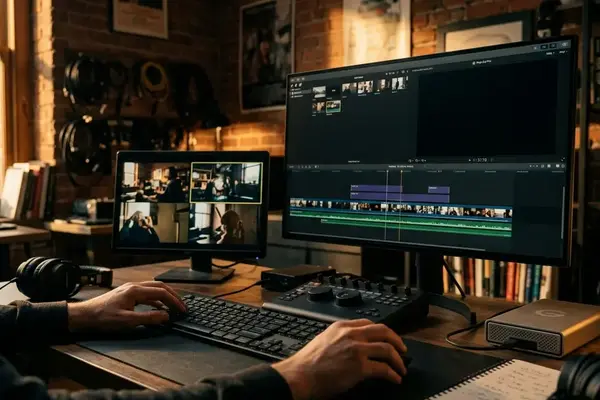
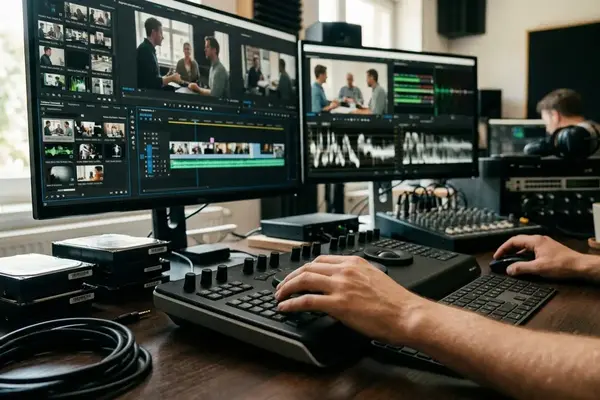
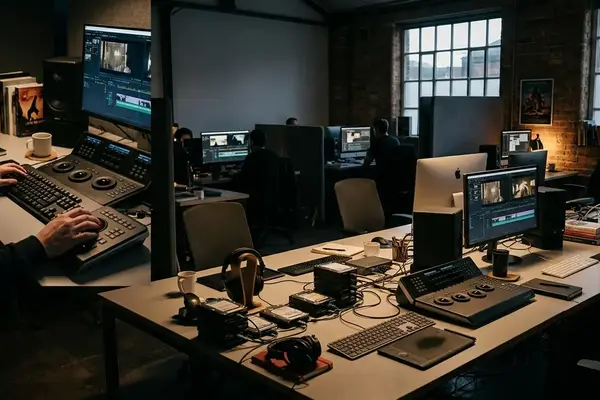
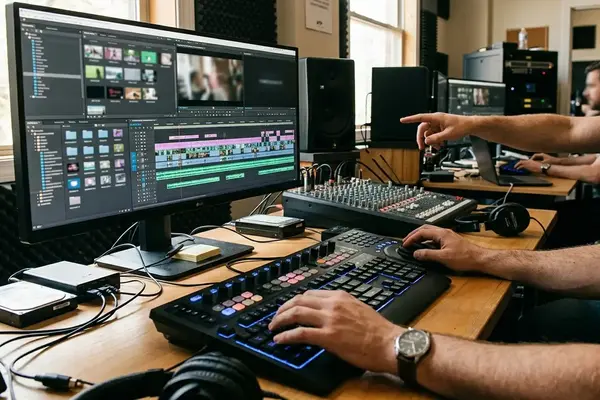
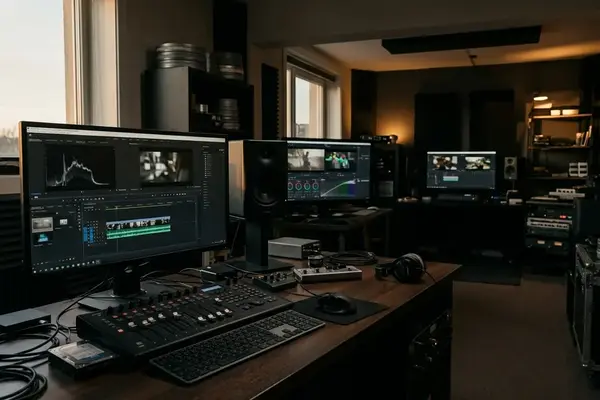
Consider an illustrative edit-room scene: an assistant editor sends a log-camera shot from a Premiere Pro sequence to After Effects. In the returned composition, the bright window looks different and the face appears warmer. The frame contains the same action, yet the two viewers suggest different grading decisions.
Those observations establish a comparison problem. They do not establish which application presents the intended image.
Before adjusting exposure or skin tone, the editor traces four separate decisions: source interpretation, working-space conversion, display processing, and output encoding. The comparison also needs matching source timecode and frame position. A changing facial angle or a passing highlight can undermine an otherwise careful inspection.
The following procedure evaluates the color path against the installed application versions. It produces a reproducible settings record, with separate checks for preview appearance, encoded pixels, and HDR delivery requirements. Color-fidelity scores and rendering-speed claims require measurements beyond this walkthrough.
OCIO and Lumetri Solve Different Parts of the Pipeline
OpenColorIO provides a framework for configured color-space conversions and viewing transforms. Lumetri supplies grading controls. A managed conversion path and an intentional skin-tone adjustment can coexist; adopting OCIO leaves creative grading with a clear role.
For the window shot, source encoding describes the camera’s representation of image values, including transfer function and gamut. The working space describes the representation used during processing. Scene-referred processing retains a relationship to scene light, while display-referred processing operates on an image already mapped toward a display presentation. Log encoding and scene-linear encoding describe different representations.
The processing chain can be written explicitly:
camera encoding → input conversion → working space and creative adjustments → output conversion → display interpretation.
An output transform maps the working representation toward the intended output encoding. The viewer branch needs separate documentation: a monitoring transform must not accidentally become another conversion baked into delivery media.
An OCIO configuration defines available spaces, roles, and transforms. OCIO does not imply ACES, and a LUT alone leaves source interpretation, processing space, viewing behavior, and export encoding unresolved. For the opening shot, the intended face adjustment stays creative; an unexplained preview mismatch remains a technical investigation.
Check What Each Adobe Application Actually Supports
Which controls exist in the installed builds, and where do they act? Begin with each application’s About dialog, then record the operating-system version and any color-processing plug-in versions. Classify the proposed route as native, plug-in-based, or rendered interchange.
Adobe's After Effects color-management documentation supplies the reference for checking After Effects controls. Its scope does not establish equivalent Premiere Pro capabilities. Without a recorded build and an inspected control, capability remains unverified.
| Category | Premiere Pro inspection | After Effects inspection |
|---|---|---|
| Source interpretation | Record clip assignments and overrides. | Record footage interpretation and overrides. |
| Working space | Inspect available sequence controls. | Inspect available project controls. |
| OCIO configuration | Verify native access or identify a plug-in dependency. | Verify configuration access against the installed release. |
| Viewer processing | Record active display processing and monitoring path. | Record exposed display and view selections. |
| Interchange | Label linked and rendered routes separately. | Inspect incoming interpretation for each route. |
| Export | Record encoding controls and metadata settings. | Record output conversion and encoding settings. |
For an OCIO-based route, preserve the configuration file, referenced transform assets, release identifier, and checksum. Record custom paths or environment-variable dependencies. A filename alone cannot establish that two workstations used unchanged configuration assets.
Dynamic Link belongs in this inspection as an interchange route. Its presence does not establish matching source assignments, working spaces, or viewer transforms.
Separate HDR Color Errors from Rendering Bottlenecks
A clipped window may originate before the creative grade. Automatic source interpretation followed by a technical LUT can apply the same input conversion twice. Different tone-mapping behavior or viewer processing can also change the highlight’s appearance. An exposure correction at this stage can conceal the first divergence.
Trace the window through source assignment, input conversion, creative grade, viewer branch, and encoded return. At each boundary, identify the expected encoding and the operation applied.
Keep three findings separate:
- Pixel agreement: decoded frames agree when evaluated in the same representation.
- Visual agreement: images appear consistent through a controlled viewing path.
- Delivery conformance: the encoded file meets its receiving specification.
Neither a monitor preview nor a scope reading independently certifies the deliverable. Record monitor model, HDR mode, calibration status, operating-system display settings, and desktop-viewer or dedicated-output routing. Include how the viewing path interprets HDR metadata.
Time Rendering Separately
A corrected preview establishes no speed improvement. Timing comparisons need constant media, timeline range, effects, export settings, hardware, and cache policy. Record playback resolution and dropped-frame indications separately from export duration; define the export start event and completion point. A single timing remains one observation.
Run a Controlled Premiere–After Effects Round Trip
The test begins with a protected project copy and a small range that exposes several kinds of color behavior. Each subsequent change should leave enough evidence for another editor to reconstruct it.
- Duplicate the project and select the range. A proposed five-to-ten-second shot containing skin, a saturated object, deep shadows, and a bright window provides useful inspection material. This range is a practical recommendation, not a measured optimum. Mark the comparison frame’s source timecode.
- Capture the initial state. Record source transfer function and gamut, media overrides, sequence or project settings, application builds, and configuration identity where applicable. Describe each automatic adjustment before deciding whether to disable it.
- Map the intended conversions. Write down the working space and delivery encoding. Assign each technical conversion to source interpretation, an effect, project processing, rendered handoff, or export. Preserve intentional grading; remove only technical conversions demonstrated to be duplicates.
- Separate the interchange routes. Label rendered interchange and Dynamic Link independently. For rendered media, record codec, bit depth, encoding, and whether a technical transform is baked into the pixels.
- Reimport with explicit interpretation. Compare matching source frames at matching dimensions in the same evaluation representation. Inspect scopes and decoded images. A viewer screenshot cannot substitute for the encoded frame.
- Measure rendering in its own pass. Record export duration with the exact range, settings, hardware, and cache state. Specify whether caches were cleared or retained, and keep interactive playback observations separate.
- Change one variable. Log the setting name, previous value, new value, affected route, and visible or numerical consequence. The corrected window should be traceable to a particular adjustment.
This record makes the comparison useful even when a linked route and a rendered route require different conversion locations.
Carry the Color Decisions into the HDR Export
Does the recipient need working-space material or a display-ready HDR deliverable? That decision determines where the output conversion belongs. A scene-linear working-space render needs its interpretation carried forward so the next stage can apply the intended viewing or output conversion.
For delivery, obtain the required transfer function, color primaries, container, codec, bit depth, and metadata from the receiving specification. PQ and HLG are distinct transfer systems. Selecting a generic HDR preset cannot resolve those choices.
Bake a technical conversion into rendered interchange when the agreed handoff requires pixels in that target encoding. Document the resulting encoding so the receiver avoids applying the conversion again. Where the handoff retains working-space values, preserve explicit interpretation instructions.
Record the Export Boundary
- Source transfer function, gamut, and interpretation overrides.
- Working space and intentional creative adjustments.
- Output transform and its location in the processing chain.
- OCIO configuration identity and required assets, where used.
- Container, codec, bit depth, transfer function, primaries, and required metadata.
Reimport the encoded deliverable and confirm its interpretation. Inspect highlights, shadows, skin, and saturated objects through the intended HDR monitoring path when available, then verify metadata against receiving requirements. A matched Dynamic Link preview still leaves this encoded-file check outstanding.
Leave the Next Editor a Repeatable Color Handoff
Retain four artifacts: a versioned settings record, an encoding-labeled reference frame, a tested interchange route, and an export checked against its delivery requirements. The reference needs source timecode and the viewing transform used for approval. The settings record needs the project revision, application builds, configuration assets, and any conversion performed outside native controls.
The operating rule is straightforward: use supported controls verified for the installed versions, and document external conversions as explicit processing steps.
Back in the illustrative edit room, the assistant editor reopens the returned shot at the marked frame. Through the recorded viewing setup, the window highlight matches the reference. The editor saves the approved settings beside the export, leaving both ready for the next shift.







Your Thoughts
No comments.
Share Your Opinion