
Quick Nav
- The safest roundtrip model
- Sync and flexibility risks
- Clip repair versus sequence mixing
- Premiere Pro timeline preparation
- Noise restoration
- Dialogue sweetening
- Return and sync verification
- Reversible versioning
The Safest Roundtrip Is a Controlled Handoff
A finite handoff gives an editor more control than an audio workflow expected to remain continuously live between applications. Premiere Pro stays in charge of editorial timing. Audition receives a known sequence state for restoration, routing, automation, and mixing.
That division suits dialogue work. Audition provides waveform editing, spectral frequency display, noise-reduction tools, and a multitrack environment built for detailed audio decisions. Premiere Pro keeps the picture edit, clip placement, and sequence start reference intact. Each application handles the job it does best without sharing responsibility for timing.
Editors often describe this exchange as Dynamic Link. The phrase can create the wrong expectation. A Premiere Pro–Audition sequence transfer may build an Audition session and render supporting media rather than behave like an After Effects composition that updates continuously. Once the handoff occurs, later picture changes do not automatically reconform the dialogue session.
Set The Reference
Before sending anything, choose a short passage containing speech, room tone, and at least one edit. Audition it in Premiere Pro, then use the same passage for the first comparison after the audio returns.
The session sample rate also deserves an immediate check. Video sequences commonly run at about 48,000 Hz, and the Audition session should match the source sequence rather than forcing a conversion during the return. This is a verification step, not a setting to assume.
Where Roundtrips Lose Sync and Flexibility
Consider a returned mix that lands two frames late at the beginning, midpoint, and end. That is a fixed offset. Its likely causes include the wrong placement point, a changed sequence start, or an export that began from the first audible word instead of the original timeline reference.
Now consider a mix that matches near the head but finishes roughly 12 frames late. That is drift because the displacement grows over time. Stretching the first example would create a new timing fault; nudging the second would only hide the problem at one location.
The distinction narrows the search. Fixed offsets point toward start time, export range, or import placement. Progressive drift calls for inspection of duration-changing conditions such as interpreted media, sample-rate handling, picture revisions, or speed-adjusted sources.
Inspect the difficult media first
- Speed-adjusted and time-remapped clips
- Nested sequences
- Merged clips
- Multicamera audio
- Adaptive audio tracks
- Mixed mono and stereo configurations
- Muted or disabled material expected in the transfer
A mix can align at the first slate and still slip near the end because one duration-changing element survived unnoticed. These checks reveal more than repeatedly nudging the returned file.
Classify Before Moving
A constant delay is a placement problem. A delay that increases is drift. Diagnose which one exists before changing media length or position.
Choose the Right Transfer: Clip Repair or Sequence Mix
How much material should leave Premiere Pro? The smallest transfer that preserves the required control is usually the cleanest choice.
Premiere Pro to Audition transfer choices| Transfer | Choose it when | Return behavior | Main tradeoff |
|---|---|---|---|
| Edit Clip in Adobe Audition | One isolated line or localized defect needs repair | Repaired media returns to the clip-based editorial context | Fast and position-aware, with limited multitrack control |
| Edit Sequence in Adobe Audition | Dialogue spans clips or tracks and needs shared processing, routing, or automation | An Audition multitrack session supports a consolidated mix or separated returns | More flexible, but tied to the transferred picture state |
Clip repair fits a damaged line, click, plosive, or short noise event that must return to its existing editorial position. Where the source permits, leave usable material on both sides. Those handles support spectral sampling, room-tone matching, and a natural fade.
Sequence transfer earns its overhead when dialogue crosses edits, microphones, or scenes. It also makes sense when several tracks need consistent processing or when the mix depends on buses and automation. Preserve the original sequence start instead of exporting from the first spoken line.
Transfer commands and rendered-media options can move between software releases. Check Adobe’s Premiere Pro–Audition editing workflow for the installed version before committing a long sequence.
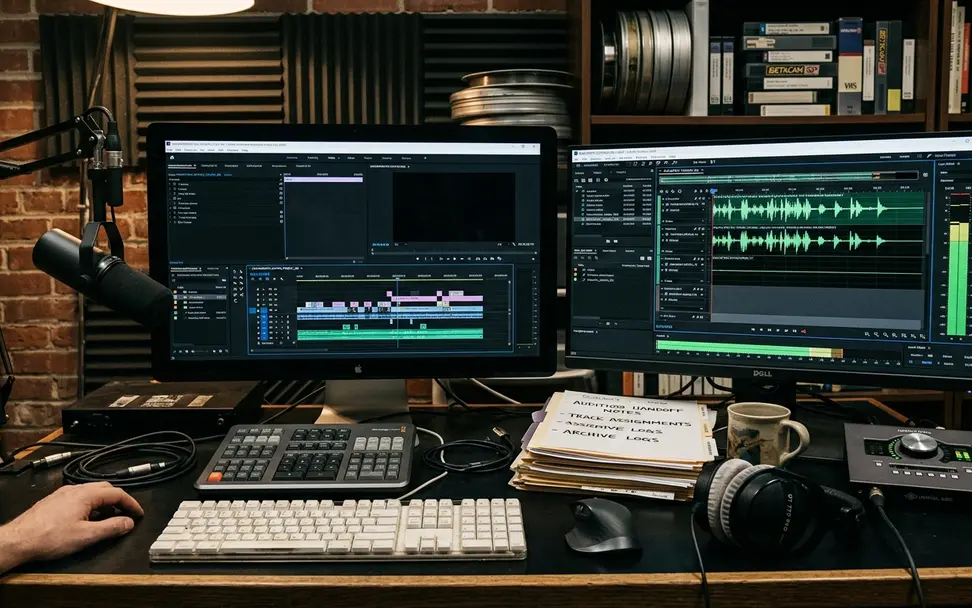
Sequence exchange still does not reconform a revised cut. Moved shots, inserted frames, and altered speeds call for a deliberate comparison or a new handoff.
Prepare the Premiere Pro Timeline Before You Send It
Preparation should leave a trail another editor can follow without opening every file to identify it.
- Duplicate the approved sequence. Use a versioned name such as CUT_v18_AUDIO_SEND_01 rather than overwriting the editorial sequence.
- Lock picture where practical. If picture must remain fluid, record the exact cut used for the audio send.
- Save the project. A transfer should begin from a recoverable project state.
- Organize dialogue tracks. Names such as DX_Boom and DX_Lav expose routing mistakes quickly.
- Inspect special cases. Confirm that nests, muted clips, disabled clips, multicamera audio, and time-remapped material behave as intended.
- Clear accidental gaps. Listen across edits instead of trusting the shape of the timeline.
- Expose handles where possible. Extra source audio gives restoration and fades room to work.
If the sequence lacks a slate, clap, or clear visible impact near the head, place a one-frame timeline marker against a short reference transient. Retain that reference in the return sequence.
Once the Audition session opens, check the start time, sample rate, channel arrangement, and track count immediately. Mono dialogue should not silently arrive as an unnecessary stereo pair.
Protect Source Tracks
Keep production dialogue on its original tracks. Place the return on newly named tracks, align it, and only then mute or disable the source.
Restore Noise Before You Sweeten the Voice
A quiet breath inside a noise print can make consonants and reverb tails pump even while the broadband noise appears reduced. The processor has learned part of the performance as contamination.
Start with diagnosis. Loop a representative passage that includes ordinary speech, pauses, and the distracting sound. The worst syllable alone provides too little context. Compare Audition’s waveform with its spectral frequency view and identify the shape of the problem before choosing a tool.
Match the tool to the defect
- Noise Reduction or DeNoise: steady broadband contamination
- DeHum: stable tonal components
- Click removal: brief impulses
- Spectral repair: localized events that can be isolated visually
Stacking every process by default makes damage harder to trace. Apply the narrowest correction, bypass it, and listen through neighboring words and pauses.
A captured noise print can help when it contains only the unwanted ambience. Reject regions with breathing, clothing movement, reverb tails, or quiet speech. Room tone also deserves protection; removing all audible space between words often produces a gate-like opening on each phrase.
Hear The Artifacts
Swirling ambience, metallic vowels, softened consonants, and pumping word openings signal excessive restoration. Back off before tonal sweetening hides the warning signs.
Finally, inspect repaired edit boundaries. A short crossfade may remove a digital click, while a moving ambience bed may need a longer transition. Let the sound determine the fade rather than copying one duration across the session.
Sweeten the Dialogue Without Flattening the Performance
Set phrase relationships with clip gain before asking a compressor to manage the remaining dynamics. A whisper-to-shout mismatch created during editorial assembly places the wrong burden on dynamics processing.
Once the large differences are controlled, listen for repeatable tonal buildup. Use subtractive equalization only after locating a specific resonance or area of excess weight. A universal voice preset can thin one microphone while leaving another nasal, especially when boom and lavalier recordings alternate within a scene.
A restrained processing order
- Use clip gain for broad phrase-to-phrase differences.
- Reduce only confirmed tonal buildup with equalization.
- Apply gentle compression to the remaining variation.
- Use de-essing where sibilance consistently distracts.
- Write automation for word-level or scene-level moves.
Compare a processed passage with bypass at a matched perceived level. Louder audio often seems clearer during a quick comparison, even when the processing has removed useful texture.
Then restore context. Monitor with music, effects, and room tone active rather than judging dialogue entirely in solo. Reliable headphones can reveal clicks and mouth noise; speakers expose how the voice sits against the rest of the program. Delivery loudness should follow the actual broadcaster, platform, client, or course specification.
Return the Polished Audio and Prove It Still Syncs
Save the Audition session as a new mix version before rendering. Names such as EP03_DX_AU_v01.sesx and EP03_DX_RETURN_v01.wav separate the working session from the delivered media and preserve the first successful pass.
The return format depends on what happens next. A consolidated dialogue mix suits a stable cut with little downstream revision. Separated dialogue tracks or stems preserve control when another mixer may rebalance microphones, revise processing, or deliver alternate channel layouts.
For a consolidated return, render uncompressed PCM media at the sequence sample rate and intended channel layout. Use Audition’s Premiere Pro handoff where the installed release supports it. Otherwise, import the render manually and place it against the original sequence start reference.
Run a full-length sync check
- Check a sharp consonant or visible action near the beginning.
- Check another clear event around the sequence midpoint.
- Check a final event near the end.
The three checks reveal the fault pattern. Equal displacement at every point indicates a start or placement error. Increasing displacement directs attention to export duration, speed changes, sample-rate handling, interpreted media, or a revised picture cut.
Approve In Context
Solo paired microphones to check phase relationships, inspect every repaired edit and fade, confirm room-tone continuity, then replay the return with music and effects.
Make Every Roundtrip Reversible
A dependable roundtrip leaves four items traceable: the source Premiere Pro sequence, the Audition session, the returned-media file, and its approval status. A compact record can read CUT_v18_AUDIO_SEND_01 → EP03_DX_AU_v01.sesx → EP03_DX_RETURN_v01.wav.
Create a new return version whenever timing, processing, routing, channel layout, or export range changes. Reserve version suffixes for actual deliverables rather than informal experiments. That discipline prevents an aligned mix from being overwritten by a later pass whose history is unclear.
Keep the muted production dialogue aligned beneath the return through final quality control. If one repaired word proves brittle or a picture revision restores an earlier take, the original line remains available without reopening the entire handoff.
Later picture changes should trigger a deliberate reconform check or a fresh transfer. Silent stretching and casual nudging only move uncertainty deeper into the sequence.
Treat every Audition return as a versioned deliverable, and keep the original Premiere Pro dialogue muted, aligned, and recoverable until final export.





Your Thoughts
No comments.
Share Your Opinion