
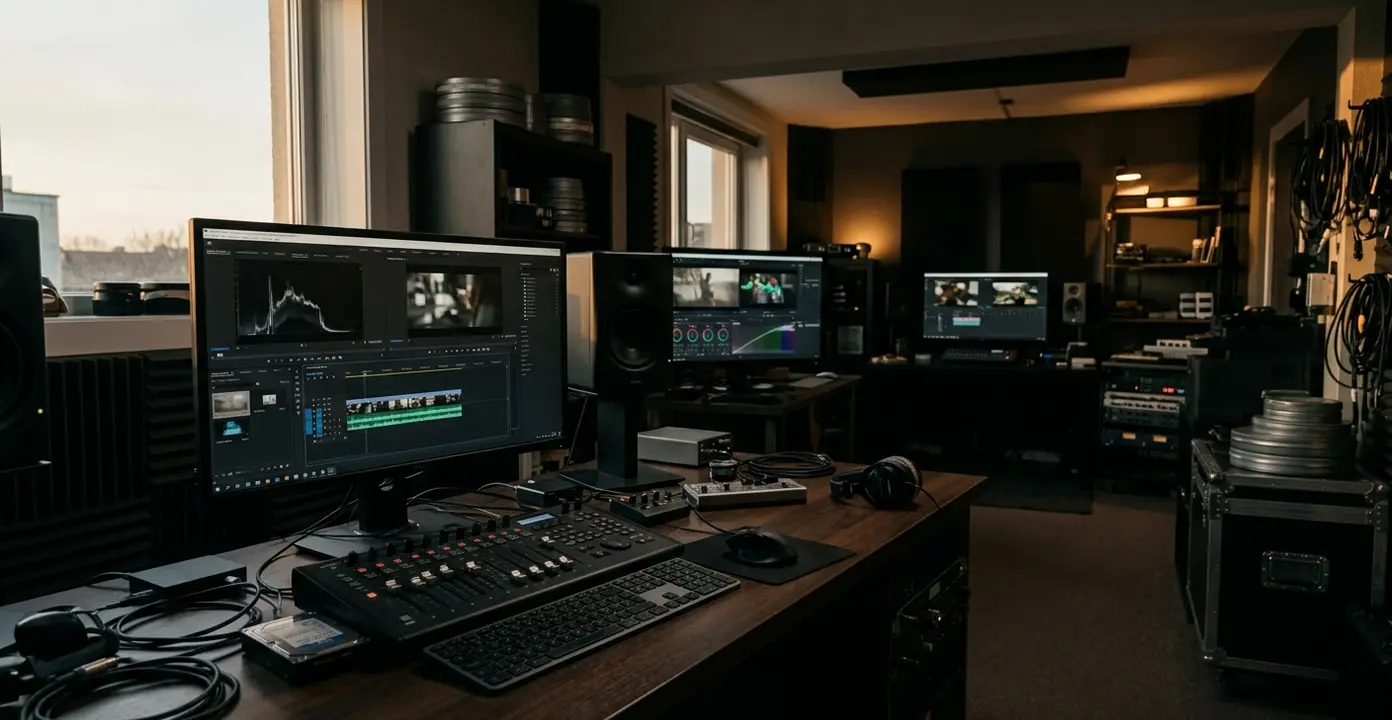
Why Choosing the Right Adobe App Matters in Post-Production
An assistant editor opens a drive and sees the usual mess: camera files, a rough brief, scattered production stills, a noisy interview, a logo from the client, and a deadline for a review cut.
Adobe’s post-production ecosystem can handle all of that, but overlap creates traps. Premiere Pro can import stills. After Effects can hold video clips. Photoshop can build title-card elements. Audition can open media exported from an edit. The question is not what an application can technically touch. The question is where the work should finish.
The wrong choice adds drag. A simple lower third should not become a full compositing workflow. Dialogue repair should not require a new reference movie after every tiny edit. Review notes should not be rebuilt by hand from email comments when timecoded feedback would keep the cut cleaner.
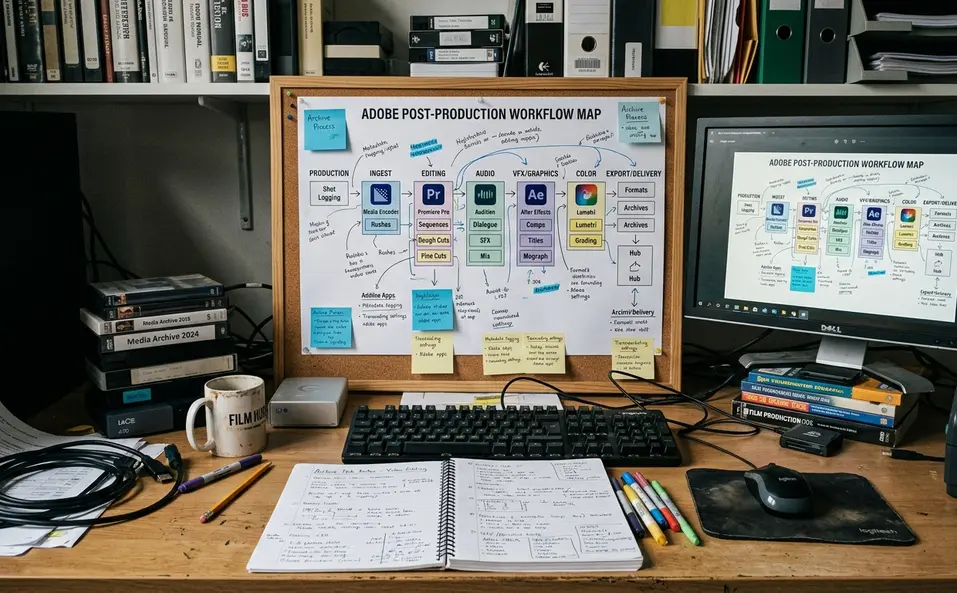
This guide maps Adobe applications to post-production decision points: editorial assembly, motion graphics, still asset preparation, audio cleanup, encoding, asset browsing, and review. It is a workflow map, not a feature encyclopedia.
Criteria for Selection: How These Tools Are Evaluated
Each application below is judged by the job it finishes.
That sounds simple, but it changes the way the choice gets made. A JPEG, WAV file, logo, or camera clip may open in several places. The better question is what state the material needs to be in when the task is done.
- Primary post-production job: What does this application complete better than the others in an Adobe-centered workflow?
- Best handoff partner: Which application usually receives the result or sends material into it?
- Common misuse: Where do editors and students ask the tool to do work that belongs somewhere else?
- Professional workflow fit: Where does the application sit in a real chain of edit, design, repair, encode, and review?
Reporting confirms that Adobe product names and app groupings are maintained through the company’s current Creative Cloud materials, so readers should check Adobe Creative Cloud app information when a class handout, older tutorial, or facility checklist uses outdated naming.
Bottom Line: Choose based on the task’s end state, not file type alone.
Scope and Limitations of This Adobe Workflow Map
Is this a ranking of Adobe applications? No.
It is an orientation guide for Adobe-centered post-production environments, especially the kind a student, assistant editor, instructor, or small production team encounters before a pipeline becomes heavily customized. A facility with dedicated finishing, color, or sound departments may route the same work differently.
Product names, bundled review services, and feature placement can change between subscription updates, sometimes within a single academic term or production cycle. That matters when a training provider writes curriculum, when an instructor updates a lab exercise, or when a producer asks why yesterday’s menu path no longer matches the current build.
Delivery requirements also come from different places. A class assignment, streaming platform, broadcaster, internal archive, festival screener request, or facility pipeline document can all define what “finished” means. This map helps with orientation and decision-making. It does not replace a facility’s pipeline notes.
The Core Editorial, Delivery, and Review Applications
1. Premiere Pro — Timeline Editing, Assembly, and Finishing Prep
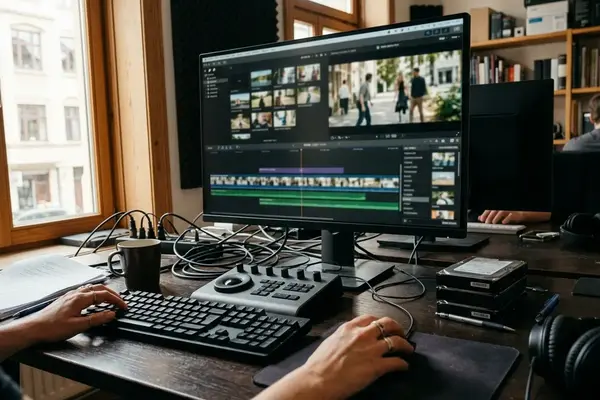
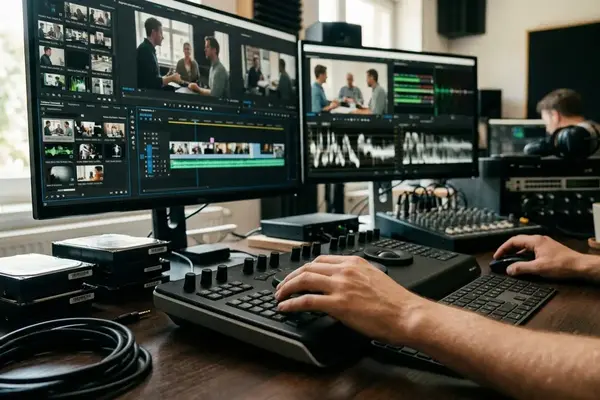
Premiere Pro is the center of the editorial timeline. It is where shots get arranged over time, scenes take shape, and story decisions remain flexible.
In practice, that means ingesting footage, organizing bins, syncing dual-system audio, building documentary stringouts, creating multicam selects, trimming scenes, adding temporary graphics, and preparing exports. It also handles basic color work and enough audio balancing to support a review cut.
The professional value is not that Premiere Pro can do everything. It is that the sequence stays editable while the cut is still being argued over. Dialogue trims, alternate music timing, and producer notes belong in a timeline first, not inside a motion-graphics composition.
The misuse shows up when an editor cuts a full five-minute explainer inside After Effects, then struggles when the producer asks for dialogue trims, alternate music timing, and three review versions. After Effects can contain footage, but it is a poor place to manage editorial change at that scale.
Premiere Pro’s best handoff partners are After Effects for designed shots, Audition for audio repair, Media Encoder for queued versions, and Frame.io for review.
2. Media Encoder: Export Queues, Transcodes, and Version Creation
Media Encoder starts to matter when one export turns into five.
A realistic queue may include a high-quality master, a smaller review copy, proxy transcodes, social-platform crops, and alternate caption or audio versions. The point is not glamour. The point is keeping version creation out of the editor’s way while still using settings that match the delivery request.
Premiere Pro can export directly, and that is fine for quick checks. Media Encoder becomes the cleaner choice when the machine needs to process multiple outputs, especially near deadline. It lets the edit application remain available while the queue does its work.
Field Note: Before queueing multiple exports, define a filename pattern that includes project name, cut version, date, aspect ratio or destination, and audio or caption variant when relevant.
3. Frame.io: Timecoded Review and Approval Context
Frame.io belongs around the review cycle, not inside the edit decision itself.
Producers and clients rarely speak in codec settings. They leave notes like “tighten pause before line” or “replace logo at end card.” The useful part is the timecode. A note tied to a frame is easier to interpret than a loose email that says the middle feels slow.
Frame.io helps when feedback needs to stay attached to a cut version. It does not decide which note is right, and it does not replace an editor’s judgment. It reduces the clerical work around review so the editor can spend more time making the actual change.
The Motion Graphics and Image Preparation Applications
4. After Effects — Motion Graphics, Compositing, and Effects Shots
After Effects is the right tool when the shot needs layered time-based design or compositing. Animated title builds, lower-third systems, screen replacements, sky or sign cleanup, split-screen composites, tracked graphics, and short designed sequences all fit here.
Premiere Pro can stack layers. That does not make it a compositing application. After Effects gives the motion designer control over keyframes, mattes, tracking, precomps, effects, and layered timing in a way the edit timeline should not try to imitate.
The handoff usually starts with a shot, title need, or section from Premiere Pro. The return can be a rendered graphic, a linked composition, or an approved visual element brought back into the edit. The cleaner the brief, the less time gets wasted rebuilding editorial context inside the motion project.
5. Photoshop: Still Cleanup, Mattes, and Layered Image Prep
A production still arrives oversized, dusty, and framed with a distracting stand in the background. That is a Photoshop problem before it is an edit problem.
Photoshop handles image-based cleanup: resizing oversized stills, retouching dust, removing background distractions, creating mattes, separating foreground and background layers, and building layered title-card elements. It prepares still material so Premiere Pro and After Effects do not have to fight it later.
The broader rule is simple: clean the still where pixel-level control is strongest. Then animate, edit, or composite it elsewhere.
6. Illustrator: Logos, Icons, and Clean Vector Layers
Illustrator sits upstream from many motion-graphics problems.
If a logo needs separate animation for icon, wordmark, and tagline, those parts should be separated before import rather than flattened into a single layer. A simple logo animation that arrives as one flattened image forces the motion designer to rebuild separations that could have been prepared in the artwork stage.
Use Illustrator for logo cleanup, icon preparation, vector shape organization, brand element separation, and conversion of messy artwork into clean layers. After Effects can animate those pieces once they are structured. It should not have to rescue every bad asset.
The Audio and Asset Support Applications
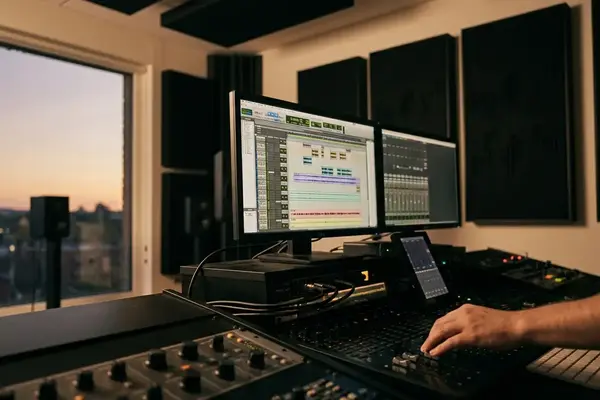
7. Audition — Dialogue Cleanup, Audio Repair, and Mix Preparation
Audition is a support tool because audio repair needs a different kind of attention than timeline editing.
Its strengths include waveform repair, broadband noise reduction, de-clicking, dialogue cleanup, music trims, room tone shaping, podcast-style editing, and mix preparation for handoff. A realistic audio handoff starts from a Premiere Pro sequence with locked or near-locked timing, an exported reference picture, and organized dialogue, music, and effects tracks.
The caution is worth taking seriously. Aggressive cleanup can remove breath, room tone, consonant detail, or performance texture. The interview may become technically quieter and still sound worse because the voice feels processed instead of present.
Use Audition when the sound needs repair or focused shaping. Keep editorial timing decisions in Premiere Pro until the cut is stable enough to justify the handoff.
Important: Do not chase perfect silence under dialogue. Natural room tone often cuts better than an over-cleaned voice.
8. Bridge: Folder Review, Metadata Checks, and Asset Triage
Bridge is not a replacement for bins in Premiere Pro. It is a way to inspect assets before they enter the project.
That makes it useful for folder-level review, metadata inspection, quick previewing of stills and graphics, locating alternate artwork, and checking asset names before import. It is especially handy when a drive contains material from multiple departments and the editor needs to understand what is actually there.
Assistant editors should keep drive folders organized by source or department while also building project bins around editorial use: scenes, interviews, selects, graphics, music, and exports. Those two structures serve different purposes. The drive protects source logic. The bins protect edit logic.
How to Decide Which Adobe App to Open First
Start with the outcome, not the icon.
- Arranging shots over time: Open Premiere Pro. If the cut later needs designed shots, hand those moments to After Effects.
- Layered animation or compositing: Open After Effects. Bring back only what the edit needs to review or finish.
- Image cleanup or retouching: Open Photoshop. Prepare stills, mattes, and layered image elements before import.
- Scalable logo, icon, or shape preparation: Open Illustrator. Separate the artwork into useful layers before animation begins.
- Audio repair: Open Audition once the timing is locked or close to locked. Keep track organization clean before handoff.
- Version creation: Open Media Encoder when the job requires multiple exports, transcodes, crops, or delivery variants.
- Review and approval: Use Frame.io when comments need timecode, cut-version context, and less email archaeology.
A student with a rough cut, a noisy interview, a logo file, and a delivery request should be able to sort the work from that list. Cut first. Repair sound when timing settles. Prepare the logo before animation. Queue the required versions. Send the review copy where comments can land on timecode.
Final Takeaway: Build the Workflow Around the Job
The useful skill is not memorizing Adobe application names. It is recognizing the next post-production decision.
Edit in the timeline. Design or composite in the motion tool. Prepare still and vector assets before import. Repair sound in the audio tool. Encode versions through the queue. Collect comments in the review layer.
That handoff mindset is what keeps professional post-production from turning into file clutter. Each application earns its place when it handles the part of the pipeline it was built to handle, then gets out of the way of the next step.






Your Thoughts
No comments.
Share Your Opinion