
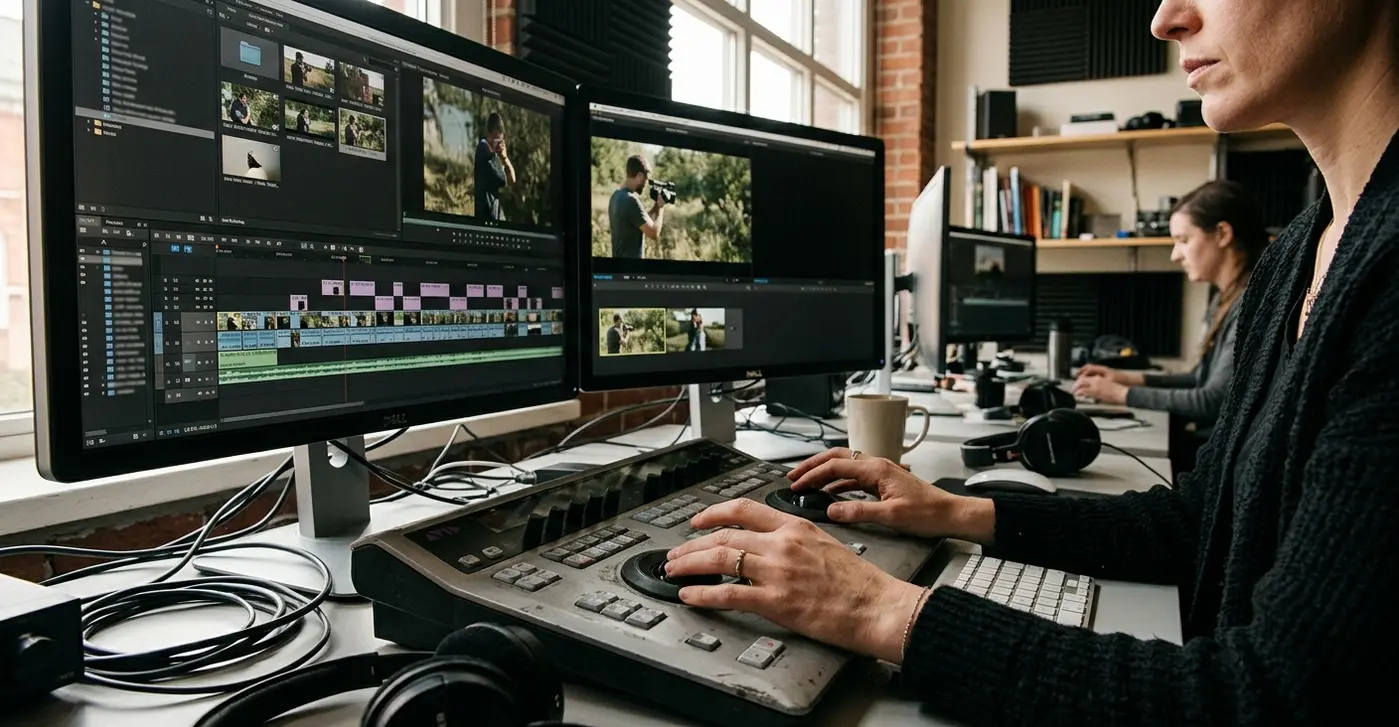
Camera Metadata Carries the Conform
Proxy workflows became practical as digital cinema resolutions outgrew the storage and playback capacity of many edit systems. Instead of cutting 4K or 8K camera originals, editors could work with lightweight media and return to the full-quality sources after picture lock.
The conform succeeds because the proxy and camera original retain matching identifiers, not because their filenames or folder locations look similar. A proxy named after its source may still point to the wrong take. Visually similar names establish no dependable correspondence at 3840 × 2160 UHD, 4096 × 2160 DCI 4K, or 7680 × 4320 8K UHD.
Establish the Matching Pair
Before planning the relink, compare one proxy master clip with its camera original from each camera. A focused 5–10-minute check should cover:
- Source timecode
- Tape or reel identity
- Source-file value
- Frame rate
- Clip duration
Source-file or tape identity paired with source timecode usually provides the strongest foundation. The dependable fields are the ones that survived proxy creation unchanged. That answer should drive the Relink settings later.
Preserve and Audit the Locked Proxy Cut
Start by duplicating the locked sequence. Give the copy an unmistakable status marker such as LOCKED_PROXY or CONFORM_PREP, then leave the original offline cut untouched.
Read the Sequence Before the Clips
Record the project format, sequence frame rate, raster, starting timecode, video-track count, and audio-track count in a relink log. Then inspect the exceptions that tend to expose conform trouble: mixed-rate material, grouped clips, multicam edits, separately recorded sound, speed effects, nests, titles, reframes, and third-party effects.
A 10–20-minute locked program with several cameras may need a 20–40-minute audit. Dedicated passes for grouped clips and nested effects keep those details from disappearing inside a general timeline review.
Expose the Source Records
Display reference clips in a bin and show source file, tape or reel, start, end, duration, codec, frame rate, and offline status. This turns the sequence into an inventory of the media it expects.
Before linking anything, confirm adequate finishing storage and preserve each complete camera-card directory with its sidecar files. Verify the required camera components as well. Partial card copies should remain outside the search path.
Link Complete 4K or 8K Camera Volumes
What should be online when the conform begins? Only a controlled set of camera-original clones, mounted with stable and distinct volume names.
Disconnect proxy destinations when practical, or otherwise exclude them from matching. Media Composer then has fewer opportunities to satisfy a loose search with the very proxy files the sequence already uses.
Build Camera-Specific Conform Bins
- Open the Source Browser.
- Navigate to the root of a complete camera card or verified clone.
- Choose the linking method appropriate to that camera format.
- Place the linked master clips in a dedicated conform bin.
- Name the bin with the camera or recording day and the volume or card identifier.
Linking exposes the original media and its metadata; it does not create replacement media. Native raw controls and source settings depend on the camera format, installed components, and Media Composer release. Unsupported sources may need a vendor-provided component or an intermediate finishing codec.
Sample Before Relinking
Inspect three linked clips per camera for a straightforward setup: one near the beginning of the shoot, one from the middle, and one near the end. Compare each against its proxy for source-file identity, source start, duration, raster, and frame rate. Allow 10–20 minutes after all volumes are online. Any disagreement should pause the sequence relink until its origin is understood.
Relink Within a Bounded Source Pool
Select the duplicated locked sequence and the bins containing the verified camera originals, then open Relink. Keep only the required conform bins open for the first pass and exclude proxy drives.
Constrain the Search
Set Media Composer to search selected items or the open conform bins rather than every mounted drive. Exact dialog labels vary among releases, but the operating principle stays consistent: a bounded candidate pool produces a more intelligible result than a facility-wide search.
Choose the identity field verified during the metadata check, typically tape or source file, and pair it with source timecode. Set the resolution choices to favor the highest-quality linked sources. Filename-only matching can attach a cut to a duplicate filename from another card or recording day.
Inspect the First Pass
Budget 15–30 minutes for the initial relink and targeted inspection of a 10–20-minute sequence. Check the first and last used frame of one shot from every camera, then inspect one transition, one speed effect, one reframe, and one multicam switch. These tests cover ordinary cuts and the timeline structures most likely to conceal an incorrect match.
Separate Relink Failures by Symptom
A failed relink becomes easier to diagnose once it falls into one of four groups in everyday practice:
- Zero matches: the sequence cannot find any eligible originals.
- Camera-island failures: material from one camera or recording group remains offline.
- Wrong-take attachments: clips reconnect, but to incorrect source media.
- Boundary or sync displacement: picture returns with shifted frames or lost synchronization.
Compare One Failure Side by Side
Place the proxy and raw master clips in adjacent bin views. Compare source-file or tape value, start timecode, duration, frame rate, and clip boundaries. Then inspect altered source names, missing reel values, timecode resets, nonmatching starts, spanned recordings, duplicate filenames, and proxies generated outside Avid with incomplete metadata.
Repeatedly changing global Relink options can turn one metadata conflict into several uncertain matches. Use a 10–30-second test sequence containing the failed shot and its neighboring edits. Confirm both boundaries and sync before extending the repair.
For every deliberate metadata change, log the original value, replacement value, affected clip, reason, operator, and date. Preserve the unmodified source record in a separate bin.
Make the Offline Reference the Acceptance Test
A green relink status only reports that Media Composer found media. The locked offline reference shows whether it found the right frames.
Review in Focused Passes
- Compare shot boundaries and source sync.
- Check speed changes, multicam choices, and other temporal edits.
- Review titles, transitions, reframes, nested effects, and third-party effects.
- Inspect representative clips for the expected raw codec and high-resolution raster.
For a 10–20-minute program, schedule a 30–60-minute comparison pass. Pause at every speed change, multicam angle change, title, transition, and nested effect. At high-risk edits, compare the first and last frames with the offline reference. For long takes, verify sync at the head, middle, and tail.
Keep the Evidence Until Approval
Retain the locked proxy sequence, offline reference export, conform sequence, linked-original bins, and relink log as separate items until picture and audio receive final approval. The workflow boundary runs from complete camera folders at ingest to verified high-risk edits at finishing.
Before retiring the proxy media, can every altered frame, angle, and effect in the conform be defended against the locked offline reference?







Your Thoughts
No comments.
Share Your Opinion