
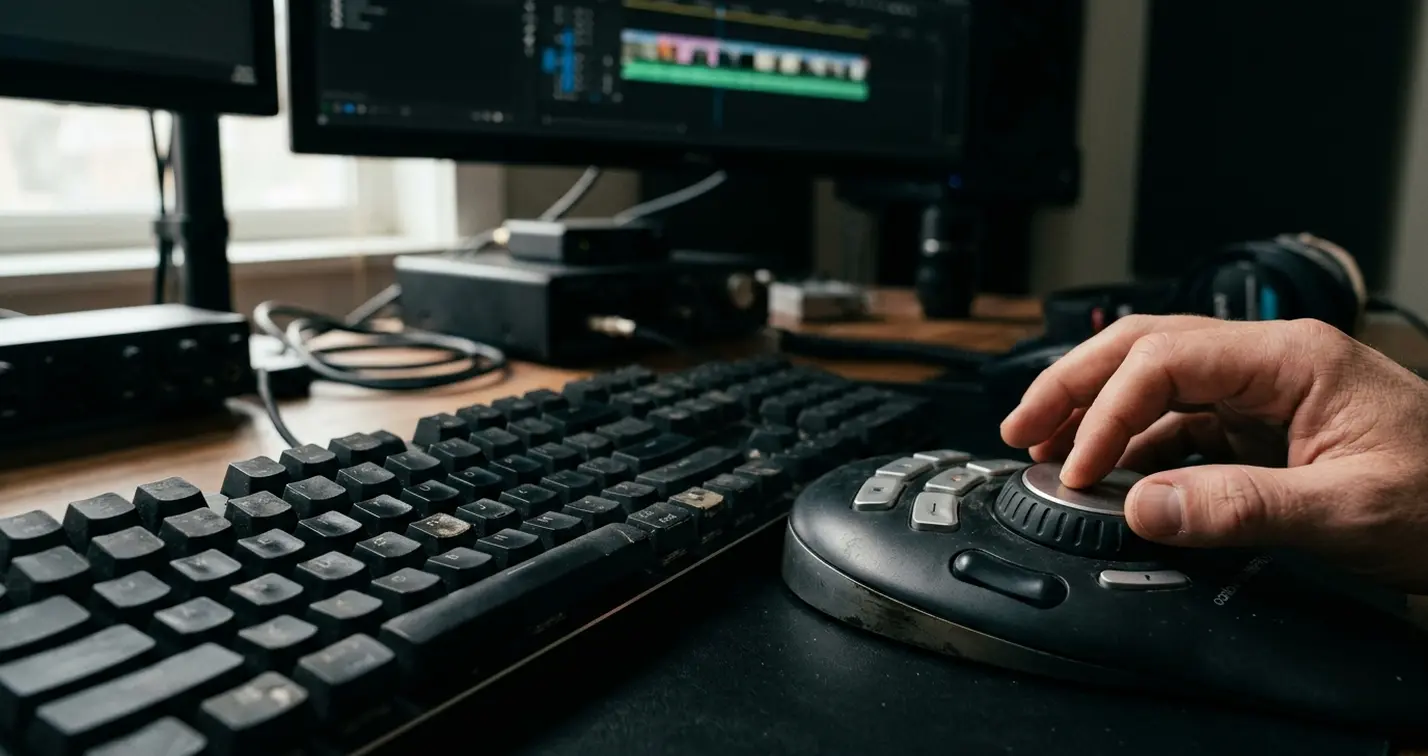
Why Small Media Composer Mistakes Become Big Post-Production Problems
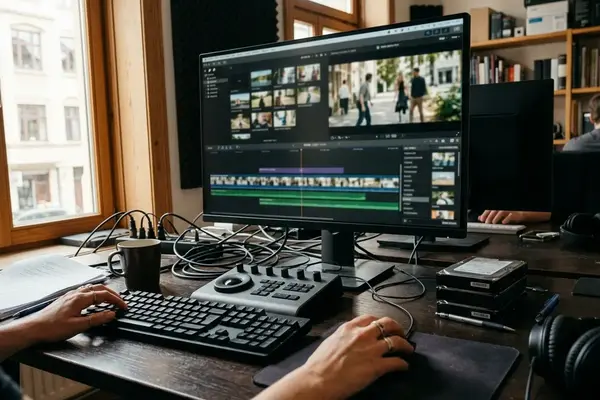
Media Composer rewards structure. It also punishes casual setup faster than many new editors expect.
In a small post room inheriting a beginner project, the problem is rarely one dramatic mistake. It is usually ten small choices made in the first half hour to hour and a half: the project format was guessed, media lived on a portable drive, bins were named loosely, and the first cut was duplicated only after feedback became confusing.
That matters because editing work rarely stops at the first playable timeline. A cut may move through rough cut, internal review, client review, locked picture, and delivery prep. Assistants may need to relink media after a drive move, open another editor's bin, prepare a sound turnover, export a review file, or find the last approved cut without asking three people what happened yesterday.
This is not a command memorization exercise. It is a field guide to mistakes that create offline media, sync trouble, version confusion, weak turnovers, and exports that do not reflect the actual approved sequence.
Bottom Line: The fastest Media Composer fix is often not a shortcut. It is a cleaner habit before the edit becomes expensive to untangle.
Criteria for Selection: Mistakes That Break Real Editing Workflows
The mistakes below were selected by one practical test: would this error stop real editorial work?
If the answer was offline media, unclear ownership, lost sync, unusable export, or uncertainty about which sequence is current, it made the list. The focus stays on five workflow categories: project reliability, collaboration, media management, edit speed, and delivery quality.
That is why the list favors Media Composer-specific habits over generic editing advice. Bins, tracks, source/record editing, linked media, transcoding, consolidation, sequence duplication, trim behavior, and export checks all affect whether another person can safely pick up the project.
This article fits editors who can already create bins and make basic edits, but need repeatable habits for student films, short-form work, classroom projects, and assistant-editor handoffs. Official application materials such as the Avid Media Composer documentation are useful for terminology and menu-level detail, but they do not replace a project-specific workflow plan.
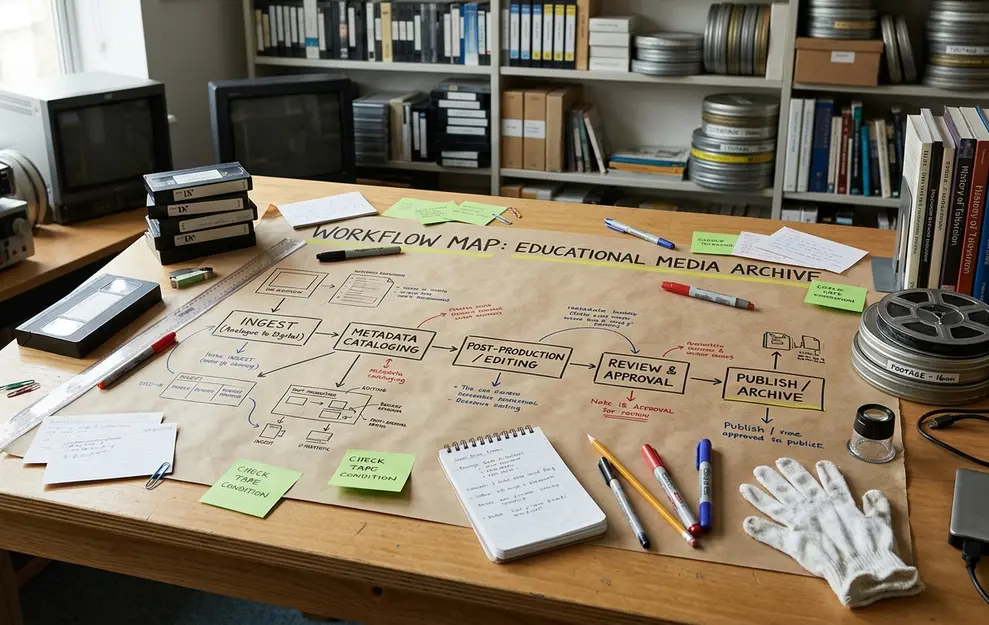
Common Media Composer Mistakes New Editors Can Fix Faster
1. Starting a Project Before Confirming Format and Frame Rate
Beginners often create a project quickly because the urge to cut is stronger than the urge to verify settings. That impulse makes sense. A blank timeline feels like progress.
Every later decision inherits the project setup, though. Before ingest or linking begins, the editor should confirm raster size, frame rate, audio sample rate, and storage location. Common format questions include whether the project is 1920x1080 or 3840x2160, whether delivery is 23.976 fps, 24 fps, 25 fps, or 29.97 fps, and whether production audio was recorded at 48 kHz.
- What is the final delivery frame rate?
- Are the camera files all the same frame rate?
- Is production audio recorded at 48 kHz?
- Where will managed media live?
A short project-start checklist of roughly 10 to 20 minutes can prevent hours of sync, ingest, and export trouble later.
2. Treating Bins Like Random Folders
Media Composer bins are active editorial workspaces, not storage closets.
A bin tells the next editor what kind of material is inside, who is using it, and whether it is safe to touch. Vague names like Cuts, New, or Final break down fast on shared storage, especially when two editors save similarly named bins during the same afternoon.
A practical starter structure might use bins such as 01_Footage, 02_Audio, 03_Sync, 04_Sequences, 05_Graphics, 06_Exports, 07_Temp, and 99_Archive. On larger shoots, add scene, shoot day, card, or date markers so the bin name carries context before anyone opens it.
Field Note: At the end of a cutting session, move obsolete bins into an archive area instead of leaving duplicate material beside active work. It is not about neatness. It is about preventing the wrong cut from becoming the working cut.
3. Editing From Unmanaged Linked Media Without a Plan
What exactly is Media Composer doing with the file?
Linking points to existing media where it already lives. Importing creates application-managed media. Transcoding creates new managed media in an edit-friendly codec. Consolidating gathers used media into a controlled location. Those differences decide whether the project survives a drive change, lab move, or handoff.
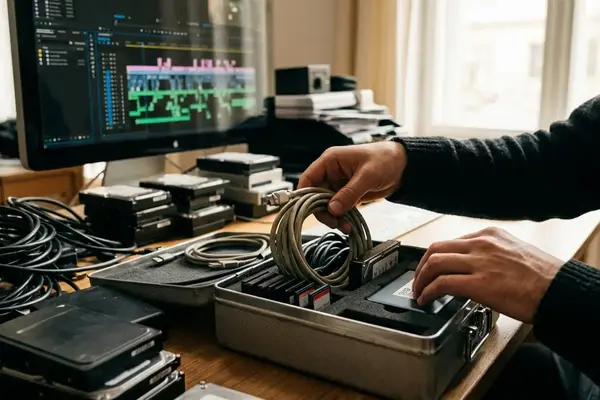
A linked interview file may cut fine on Friday, then open offline Monday because the external drive letter, mount point, or folder path changed. The same thing can happen with desktop folders, downloads folders, camera-card copies, portable drives, cloud-sync folders, and temporary classroom lab drives.
A cut that plays correctly on a student's laptop can open with offline media in a lab because linked files were stored in a downloads folder rather than a stable media location. For classroom or small-team projects, decide during ingest whether linked camera originals are temporary review media, working editorial media, or source files that must be transcoded before cutting. That decision belongs in the same setup window of roughly 20 to 40 minutes as project creation and bin structure.
4. Ignoring Tape, Source File, and Clip Metadata
Metadata is not database trivia. It is how an edit finds its way back to the source.
Relinking, turnovers, assistant workflows, and conform checks often depend on original camera file names, source file fields, reel or tape-style identifiers, and timecode references. Casual renaming becomes dangerous when it overwrites the identity needed later.
The safer habit is simple: preserve source identity, then add editorial language somewhere else. Use custom columns for Scene, Take, Interview Subject, B-roll Topic, Selects, Rights Status, or Music Temp. If display names need to be friendlier, duplicate or copy metadata into an editorial column before changing what the editor sees day to day.
Also avoid flattening camera folder structures before the team knows whether sidecar files, spanned clips, or original hierarchy are needed. Clean folders can still be destructive folders.
5. Cutting Without Understanding Tracks and Patching
Track patching is the pre-edit safety check. It is the editor's version of checking mirrors before moving a vehicle.
A reliable rough layout might keep V1 for primary picture, V2 and V3 for cutaways or titles, A1 and A2 for dialogue, A3 and A4 for additional production audio, A5 and A6 for music, and A7 and A8 for effects or temp guide tracks. The exact layout can change, but the editor should know what each track is supposed to carry.
Common mispatches are easy to create: source A1 lands on record A5, B-roll replaces a title layer, or an insert edit overwrites room tone because the wrong record tracks were active. Before large insert or overwrite edits, check source-side track selectors, record-side targets, sync locks, and locked tracks.
A brief pause of a few seconds before a major edit is rarely wasted, especially after switching between sync clips, music, and graphics.
6. Letting Audio Sync and Track Layout Drift
Rough cuts do not need final sound design. They do need audio another person can read.
A sample rough-cut layout might place dialogue on A1 and A2, alternate production or lav tracks on A3 and A4, music on A5 and A6, effects on A7 and A8, and temp mix or guide tracks on A9 and A10. This keeps intent visible even before a mixer ever sees the project.
Drift usually starts quietly. An editor unlinks synced audio and nudges picture only. Music gets moved into dialogue tracks. Muted guide tracks stay unlabeled. Room tone disappears during picture trims. A dialogue edit can appear visually correct while A1-A2 are out of sync because picture was nudged after linked audio was separated.
Duplicate the sequence before major audio restructuring, especially before collapsing guide tracks, removing unused channels, or preparing a sound handoff.
7. Overwriting Sequences Instead of Versioning Them
One master sequence feels tidy. That is why beginners overwrite it.
Professional cutting needs controlled clutter. Old cuts are evidence, rollback points, and review history. Two sequences named 'Final' can both be wrong when one was exported before feedback and the other contains unreviewed title changes.
Use adaptable names that describe status and timing: Project_Scene_RoughCut_2025-02-14, Episode01_InternalReview_v03, or ShortFilm_PictureLock_candidate_1430. Add a 24-hour time stamp on days with multiple review exports.
Duplicate before major feedback passes, structural changes, music replacement, title revisions, or export preparation. Store superseded cuts in a dedicated archive bin instead of deleting them during the same session.

8. Avoiding Trim Tools and Dragging Everything by Hand
Why do trim tools feel intimidating? Because they show the edit point directly, and that makes mistakes feel more visible.
That visibility is the advantage. Ripple trim, overwrite trim, dual-roller trim, and playback review around the cut let the editor adjust timing with context. Tightening a reaction by a few frames, extending a pause, or rolling a dialogue overlap should not require tearing open the surrounding scene.
Manual dragging can create accidental gaps, frame-accurate timing errors, or sync changes that are harder to diagnose later. Trim tools reduce timeline damage because they keep the operation focused on the edit point.
Practice on a duplicate sequence for around 15 to 25 minutes before using trims on an active client or class review cut. The goal is not speed first. It is control.
9. Stacking Effects Without Render or Label Discipline
There is no single perfect render strategy for every Media Composer project.
The useful distinction is between experiments, temporary editorial effects, and effects that must survive into review or delivery. Beginner timelines often stack resize effects on V2, temporary color correction, masks, speed effects, lower-thirds, blurred logos, audio EQ, and quick level changes. That can be fine until playback stutters and no one knows why.
The stutter might come from linked media, multiple unrendered effects, mixed frame rates, slow storage, codec choice, raster size, number of video layers, graphics hardware, or whether the media is linked or managed. Troubleshooting gets slower when abandoned tests remain in the active timeline.
Label temporary effects, remove experiments that are no longer being evaluated, and render when playback accuracy matters for review, timing, or export confidence.
10. Treating Export Like a Button Press
Export is a final inspection, not the last click of the edit.
Before exporting, duplicate the final sequence. Clear unwanted in and out marks, check offline media indicators, confirm muted or soloed audio tracks, scan disabled video layers, and watch the head and tail. The first and last half-minute or so deserve real-time attention because slates, fades, black frames, and end cards often fail there.
Look for filler gaps, wrong top video layers, temp titles, misspelled names, mixed frame-rate warnings, missing music, incorrect audio routing, and leftover guide tracks. Many export problems were created before the export window opened.
Important: Do not assume one preset fits every delivery. Match the sequence condition, delivery spec, and project settings before committing the export.
Scope and Limitations
This guidance is safest for beginner-to-early-intermediate editorial projects: student films, short-form work, classroom exercises, and small-team edits.
Menu names, relink behavior, media paths, and export presets can vary across current software versions, classroom lab images, and facility configurations. Instructors, assistant-editor guides, delivery spec sheets, and supervised facility workflows take priority over a general training article.
Advanced areas need project-specific instructions: shared storage administration, high-end conform, broadcast delivery, color pipeline design, and final mix specifications. A training provider like Video Symphony can teach the reasoning behind the workflow, but the job still decides the rules.
Closing Habits That Make Media Composer Easier to Trust
New editors do not need to master the whole application at once. They need one repeatable workflow habit per project.
Project one can focus on bin naming. Project two can focus on intentional media management. Project three can focus on sequence versioning. Project four can focus on export checks. Each habit reduces preventable cleanup and makes creative revisions faster.
The core pattern is steady: confirm settings, manage media intentionally, label bins and tracks, version sequences, and inspect exports before delivery.
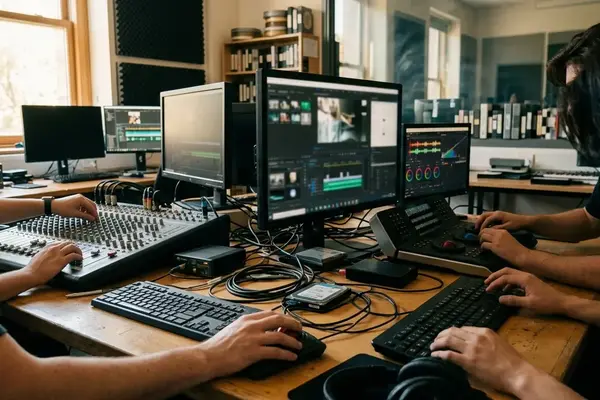
The real test is collaboration. Can the next editor, assistant, instructor, mixer, or reviewer open the project and understand what is current, what is temporary, and where the media lives? If the answer is yes, Media Composer starts to feel less unforgiving and more like the structured editorial system it was built to be.



Your Thoughts
No comments.
Share Your Opinion